
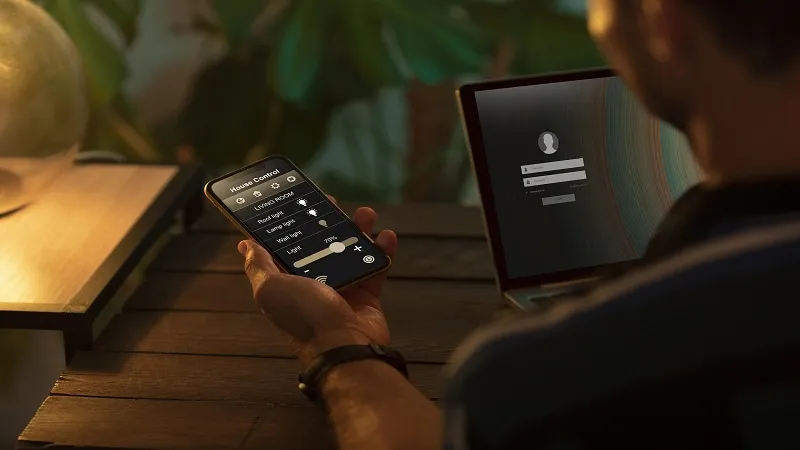
Remember the old days of sharing your WiFi password? You’d write it down on a sticky note, type it out in a text message, or stumble through reciting a jumble of random characters to guests. “Is that a capital Z or a number 2? Did I put an underscore there?” It was frustrating for you and even more frustrating for them.
Now there’s a better way. WiFi QR codes are the modern tech solution that lets you share your home network instantly with a single scan. No typing, no mistakes, no awkward password recitations. Just hold up your phone, scan the code, and you’re connected.
You can create your own WiFi QR code easily with a QR code generator.
Why WiFi Passwords Are a Headache
WiFi passwords serve a necessary purpose: they keep your network secure from strangers. But they also create a constant headache for anyone who lives in or visits a home with WiFi.
The Guest Connection Struggle
Every time someone visits your home, you face the same problem. They want to connect to WiFi, but your password is:
- Too long to remember
- Too complicated to type correctly
- Written somewhere they can’t find
- Changed recently and you forgot to tell them
You end up becoming a WiFi password concierge, repeating the same string of characters over and over. And guests end up frustrated, typing it wrong multiple times before finally getting connected.
The Password Management Nightmare
For homeowners, managing WiFi passwords is also a hassle. You might:
- Write it down but then misplace the note
- Change it for security but forget to update where it’s stored
- Have different passwords for different networks and lose track
- Share it with family members who then share it with friends you didn’t authorize
It’s secure, yes. But it’s also inconvenient in a way that modern tech should have solved already.
What Are WiFi QR Codes and How Do They Work?
WiFi QR codes are QR codes that contain your WiFi network information encoded directly in them. When someone scans the code with their phone, their device automatically reads the network name (SSID), password, and security type, then connects without requiring them to type anything.
The Technology Behind WiFi QR Codes
WiFi QR codes use the same QR code standard as any other QR code, but they encode data in a specific format that phones recognize as WiFi information. The format includes:
- SSID: Your WiFi network name
- Password: Your WiFi password
- Encryption type: WPA, WEP, or no encryption
- Hidden network flag: Whether the network is hidden
When your phone scans the QR code, it parses this data and sends a connection request to your router automatically. The whole process happens in seconds, with zero typing required.
How to Create Your Own WiFi QR Code
Creating a WiFi QR code is simple. You don’t need special software or technical knowledge. Just follow these steps:
Step 1: Gather Your WiFi Information
Before creating your QR code, you’ll need:
- Your WiFi network name (SSID)
- Your WiFi password
- Your network’s security type (usually WPA or WPA2)
You can find this information in your router settings or by checking the WiFi settings on a device that’s already connected.
Step 2: Use a QR Code Generator
Go to a reliable QR code generator like QRStuff and select the WiFi network option. Enter your network name, password, and security type in the fields provided.
Step 3: Customize Your QR Code
Most QR code generators let you customize the look of your code. You can:
- Add your home address or a welcoming message
- Choose colors that match your home decor
- Add a logo or icon
- Select the size and format for printing
This customization makes your WiFi QR code look professional and fits it into your home’s aesthetic.
Step 4: Download and Print Your QR Code
Once you’ve created your WiFi QR code, download it in a high-quality format like PNG, SVG, or PDF. Print it on cardstock, a small sign, or even a decorative frame.
Where to Place Your WiFi QR Code in Your Home
Now that you have your WiFi QR code, where should you put it? The best locations are places where guests naturally gather or where they’ll need WiFi access.
Entry Areas and Guest Spaces
This is the best place if you regularly welcome guests at your house, or if you have an Airbnb. Recommended places include:
- Near your front door: Guests can scan as they enter
- On a welcome board: Include it with other house information
- In your living room: Where guests typically sit and use their phones
- On a kitchen counter: A central spot everyone sees
Other strategic places
- On a small stand on your table: For dinner parties or gatherings
- In your home office: For work-from-home visitors
- Near your charging station: Where people plug in their phones
- On a decorative plaque: Makes it look like part of your home decor
The key is placing it where it’s visible but not intrusive. It should be easy to find without dominating your space.
Benefits of Using WiFi QR Codes for Home Networks
WiFi QR codes solve the old password problem in ways that make life easier for everyone. Here’s why upgrading to modern tech with WiFi QR codes is worth it.
For Homeowners
- No More Password Recitations
You never have to repeat your WiFi password again. Just point to the QR code and say, “Scan this to connect.”
- Better Security Control
You can create different QR codes for different networks (like a guest network) and revoke access by changing the QR code without changing your main password.
- Professional Appearance
A well-designed WiFi QR code looks polished and modern. It shows you’re tech-savvy and care about guest experience.
- Easy Updates
If you change your WiFi password, just create a new QR code. No need to update sticky notes or re-teach family members the new password.
For Guests
- Instant Connection
No typing, no mistakes, no waiting. Scan and you’re connected in seconds.
- No Memory Required
Guests don’t need to remember your password. They just scan the code when they need WiFi.
- Privacy Protected
You don’t have to share your actual password. The QR code handles the connection securely.
Common Mistakes When Using WiFi QR Codes
WiFi QR codes are simple, but there are a few mistakes that can make them less effective.
Printing and Placement Mistakes
- Too small: If the QR code is too small, phones can’t scan it accurately
- Poor contrast: Black on white works best. Avoid colors that make it hard to read
- Wrong location: Placing it where guests can’t see or reach it
- Damaged code: Water, scratches, or fading can ruin the QR code
Technical Mistakes
- Wrong security type: Make sure you select the correct encryption (WPA/WPA2)
- Outdated password: If you change your WiFi password, update the QR code
- Hidden network issues: Some phones struggle with hidden networks via QR codes
- No testing: Always test the QR code on multiple phones before relying on it
Design Mistakes
- Over-customization: Adding too many colors or logos can make the code unreadable
- Wrong size: Too large looks awkward, too small doesn’t work
- Bad font: Using fonts that interfere with QR code scanning patterns
The solution is simple: test your QR code on multiple devices, print it in high quality, and place it where it’s visible and accessible.
Getting Started With WiFi QR Codes Today
If you’re ready to upgrade your home network from old passwords to WiFi QR codes, here’s your simple starting plan:
- Find your WiFi information: Get your network name, password, and security type
- Create your QR code: Use a reliable qr code generator with WiFi support
- Customize it: Add colors, logos, or messaging that fits your home
- Print it: Download in high quality and print on cardstock or a sign
- Place it: Put it in a visible location where guests connect
- Test it: Scan with multiple phones to make sure it works
- Share it: Tell your guests about the new, easier way to connect
See More: DecoradTech